Aether VPN on Android TV
Connect to Aether VPN on your smart TV or Android TV streaming box using the Happ client. Follow this step-by-step guide with screenshots.
Note: Screenshots show the interface. English labels below are descriptive translations; wording may slightly vary across app versions.
Before you start
- •Prepare the Happ app on your phone: You will use it to instantly transfer your subscription to the TV screen via QR code without typing long URLs with a remote.
- •To install Happ this way, you will need a USB flash drive or Google Play and a web browser on your TV.
- •Use your own personal subscription URL from your Account Dashboard or the Telegram Bot. Screenshots below illustrate interface examples.
- •Keep your connection key private and do not share it on screenshots.
App Installation
1. On the official Happ GitHub Releases page, select the APK matching your TV processor architecture (typically armeabi-v7a or arm64-v8a), download it, and save it to a USB flash drive.
2. Plug the USB flash drive into your TV and open the downloaded APK file using any installed file manager.
3. Confirm the application installation and wait for it to finish.
Connection
Follow these 5 simple steps to get connected on your Android TV:
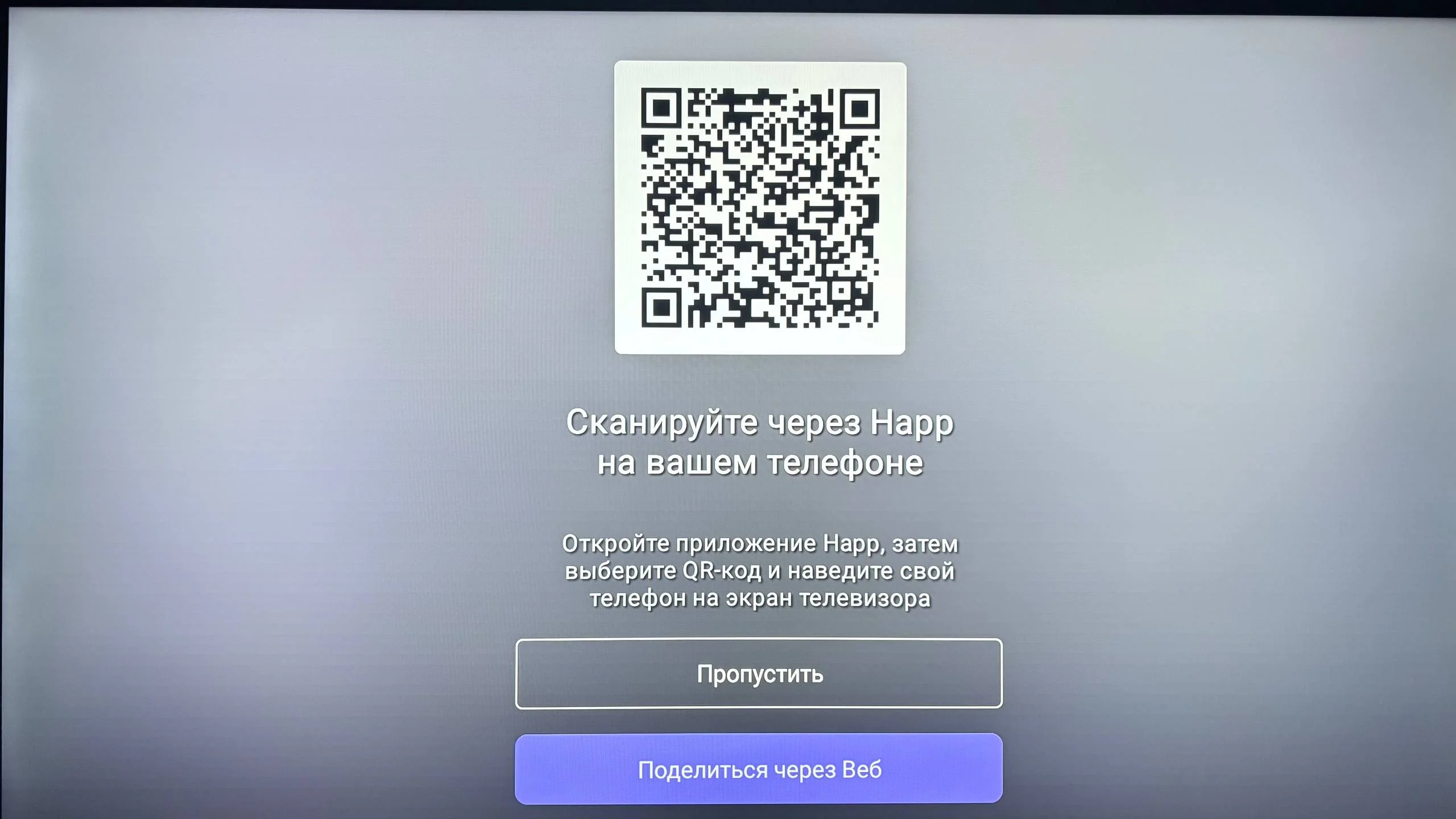
Open Happ on your TV
Launch the installed Happ application on your TV. The main interface will show options to add or import your subscription.
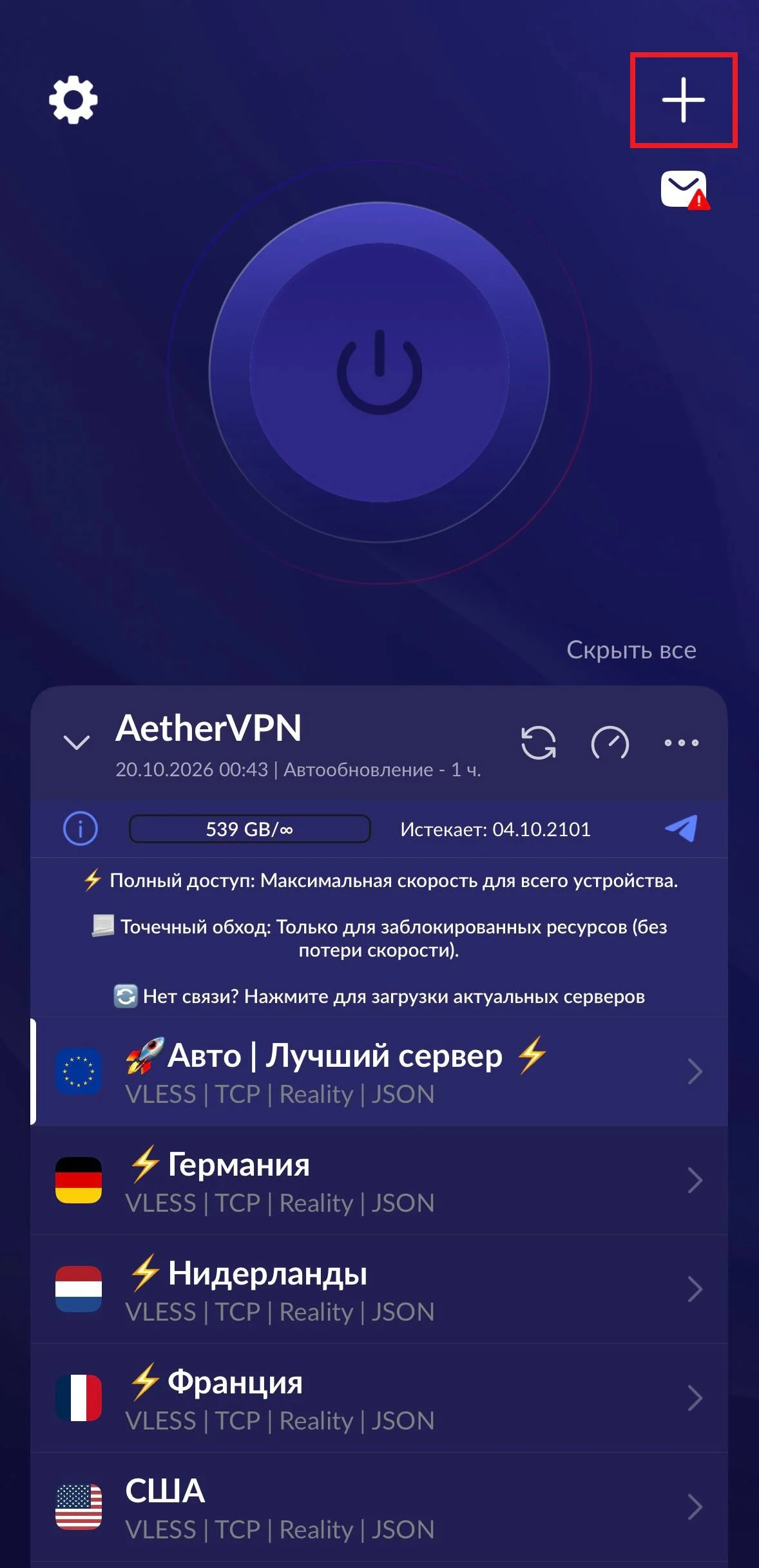
On your phone, tap “+”
Open the Happ app on your smartphone where your Aether VPN profile is already active, and tap the “+” icon in the upper-right corner.
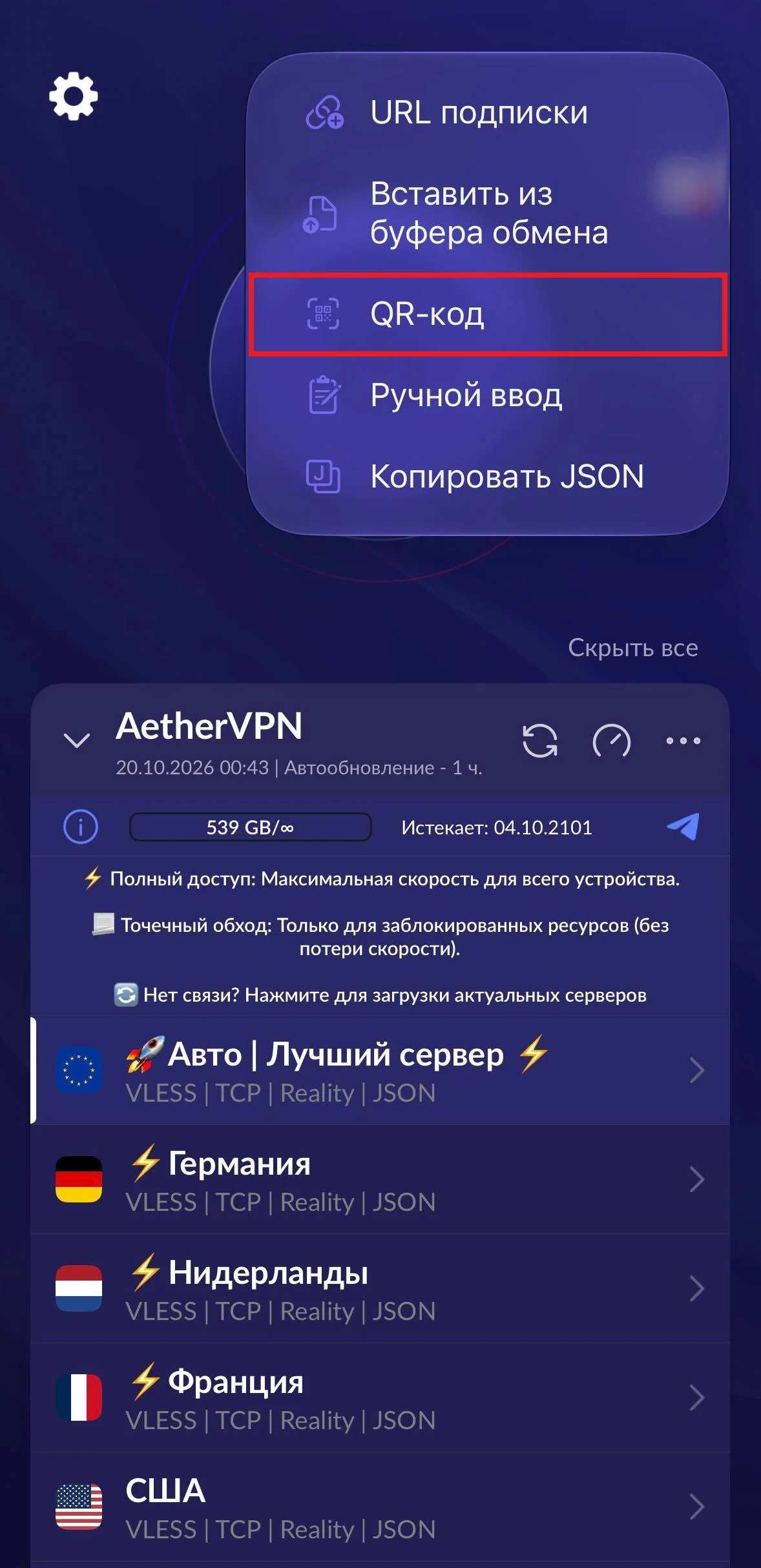
Select “QR Code”
From the menu options, select “QR Code” to activate the camera scanner on your phone.
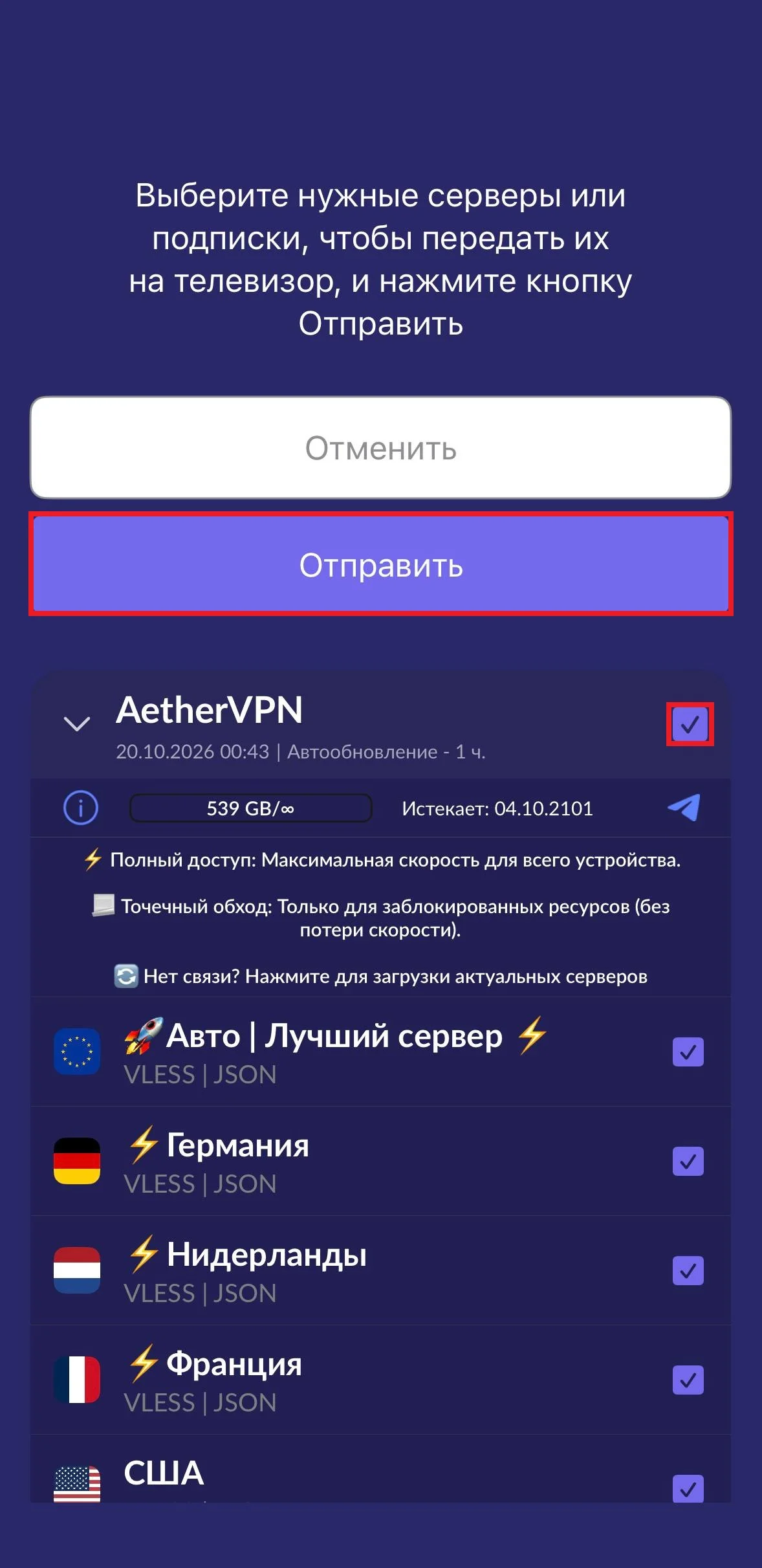
Scan the TV code with your phone
Point your phone camera at the QR code shown on your TV screen. Check the checkbox next to AetherVPN and tap “Send” (Отправить).
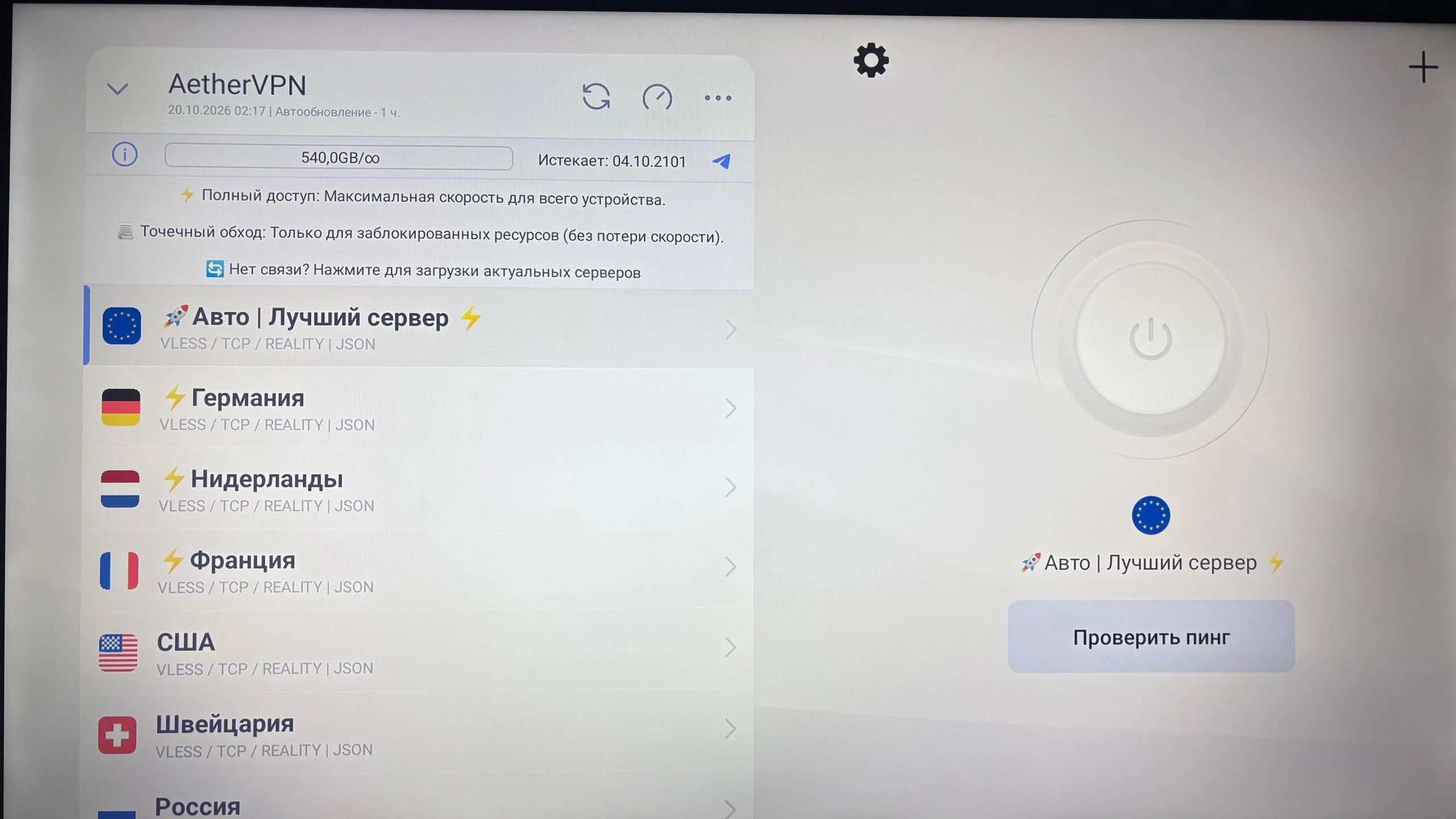
Select a server and connect
Once the configuration finishes importing on your TV, choose your preferred server location from the list and press the round connect button. If Android TV asks for VPN permission, allow it using your remote.
Need help connecting?
Tell us your TV model or Android TV streaming box and where you got stuck. Our support team is ready to help you get connected in minutes.