Aether VPN on Android
Connect your Android phone or tablet to Aether VPN using the ultra-fast, lightweight Happ client. Follow the step-by-step illustrated tutorial below.
Note: Screenshots display the app interface. English labels below are descriptive translations; exact wording may slightly vary across app versions.
Before you start
- •An active Aether VPN subscription is required. Copy your connection key from your Account Dashboard or via the Telegram Bot.
- •Keep your personal key private and do not share it in screenshots.
- •Turn off any other running VPN applications or system proxies before connecting for the first time.
Install Happ on Android
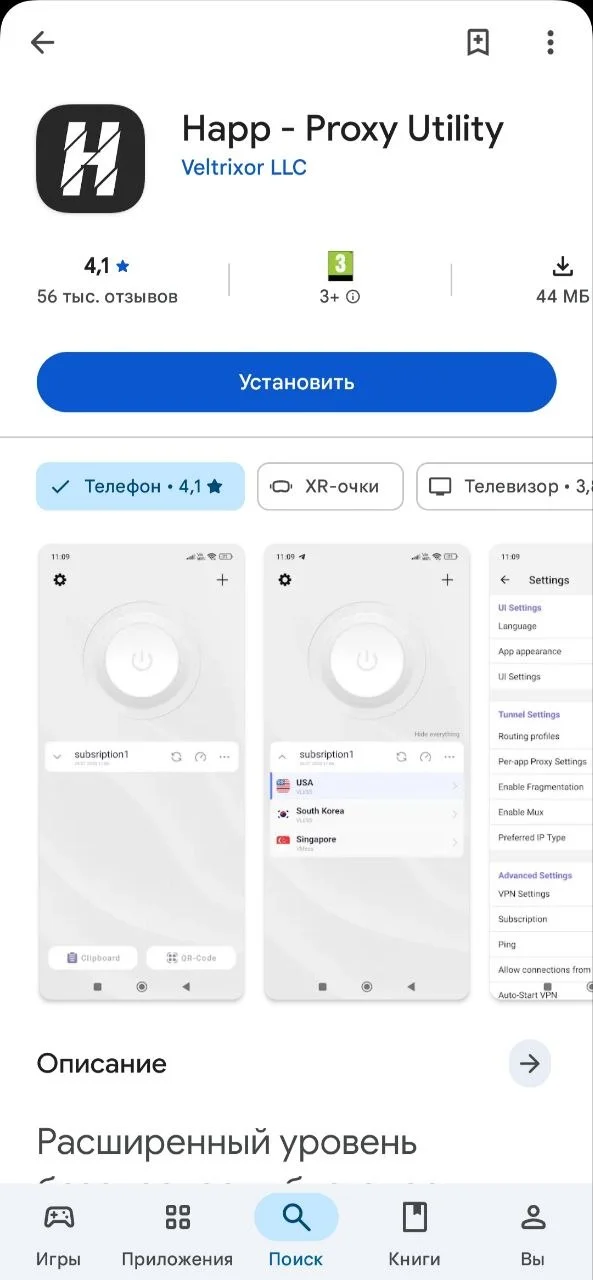
Install the official Happ client from the Google Play Store, or download the standalone APK directly from GitHub releases:
Obtain your Connection Key
Copy your complete personal subscription URL from the Telegram bot or client portal:
In the Telegram Bot
Open the Aether Telegram Bot, tap "Manage Subscription", and copy the full URL under the connection key line.
In the Client Portal
Log in to your Account Dashboard, open "Profile → Instructions", and click the copy button next to your subscription URL.
Add Subscription to Happ
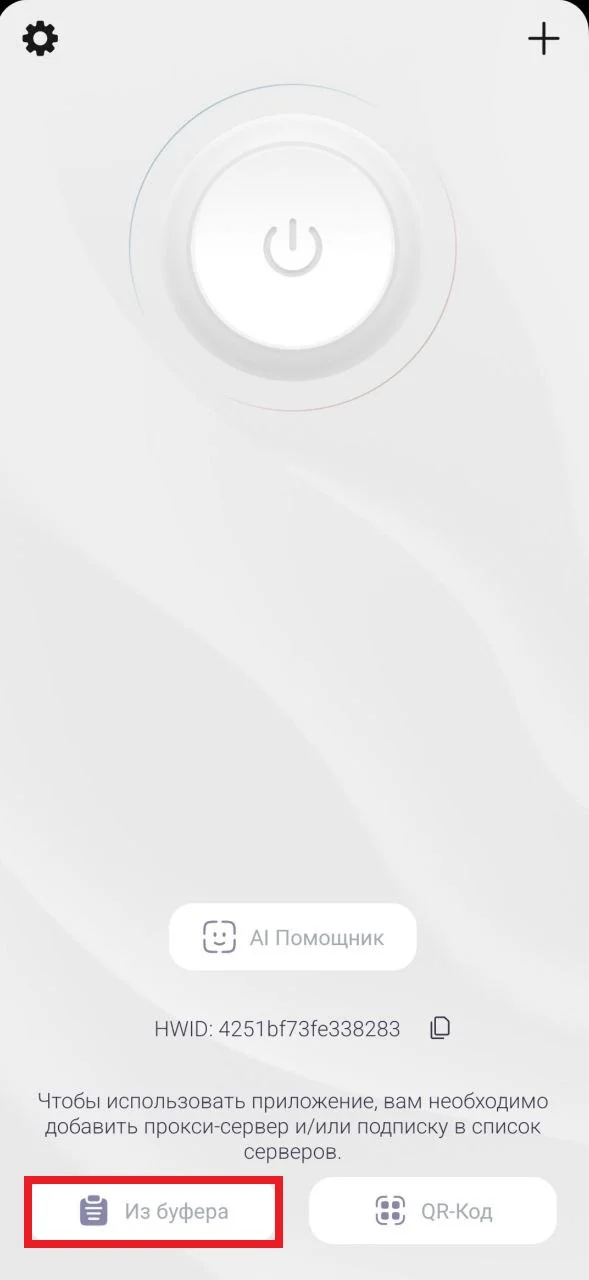
- 1.Open the Happ app on your Android device.
- 2.Tap the «+» (plus) icon in the top-right corner.
- 3.Select «Paste from clipboard».
- 4.The app will automatically parse your subscription and load all available high-speed Aether VPN server locations.
Connect to VPN
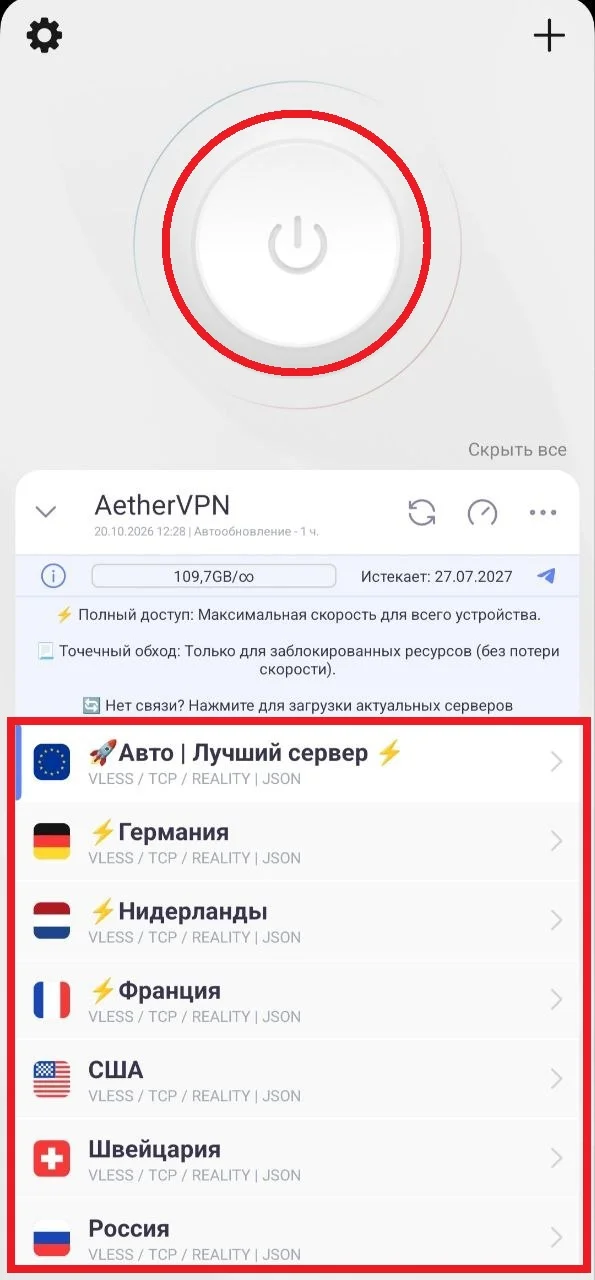
- 1.In the server list, choose your preferred location (e.g. Germany, Netherlands, Finland, etc.).
- 2.Press the large circular power button in the middle of the screen.
- 3.On first connection, Android will prompt for VPN permission. Tap «OK» or «Allow».
- 4.The button turns green, and the VPN key icon appears in the status bar — your connection is now active and encrypted.
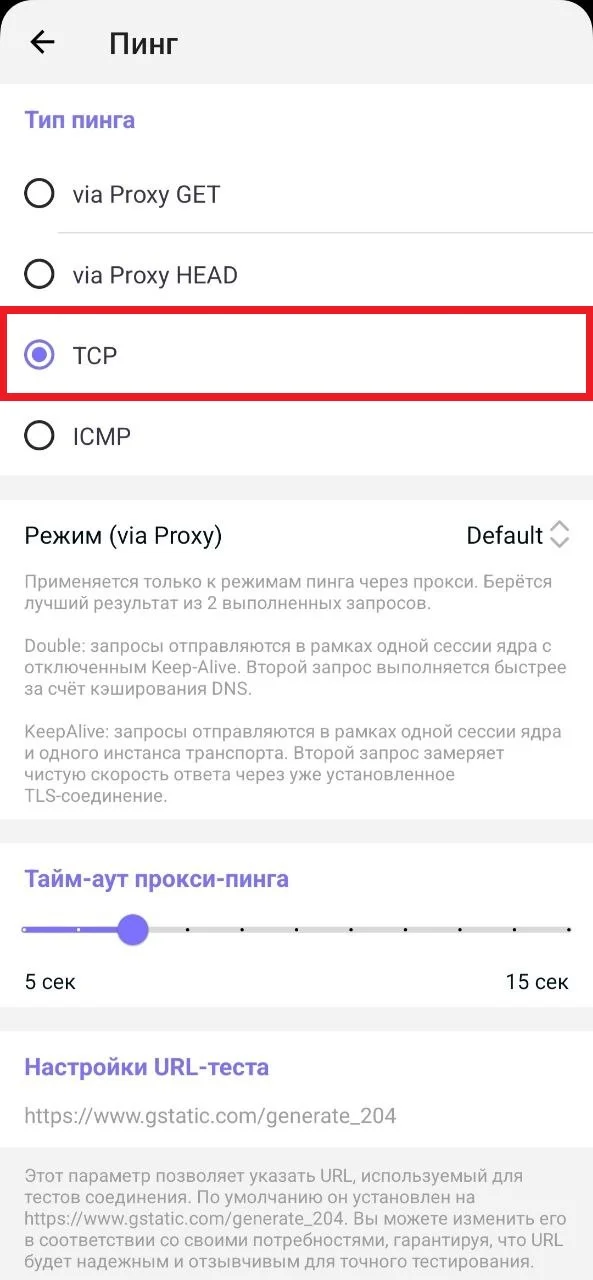
Recommended: Configure TCP Ping
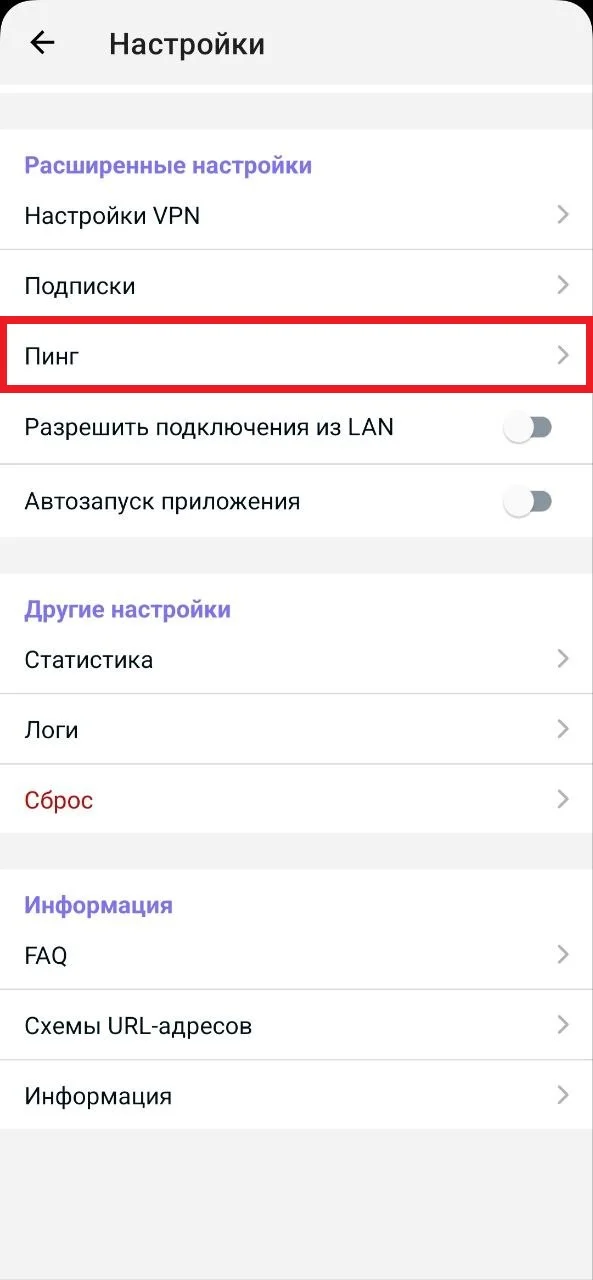
To guarantee real-time latency measurements without ISP ICMP throttling, configure Happ to measure latency via TCP:
- 1.In the bottom navigation bar of Happ, tap «Settings» (gear icon) and choose «Ping».
- 2.Under ping protocols, select TCP.
Need help getting connected?
Send our engineers a quick message on Telegram with your device model and the step you are stuck on. We will help you set up smoothly in minutes.