Aether VPN on iPhone and iPad with Happ
Connect to Aether VPN on your iPhone or iPad using the lightweight, high-performance Happ client. Follow the step-by-step instructions with screenshots below.
Note: Screenshots display the app interface. English labels below are descriptive translations; exact wording may slightly vary across app versions.
Before you start
- •You need an active Aether VPN subscription. Copy your connection key from your Account Dashboard or the Telegram Bot.
- •Keep your personal connection key private and do not share it in public chats or screenshots.
- •Turn off any other active VPN applications and system proxies before connecting for the first time.
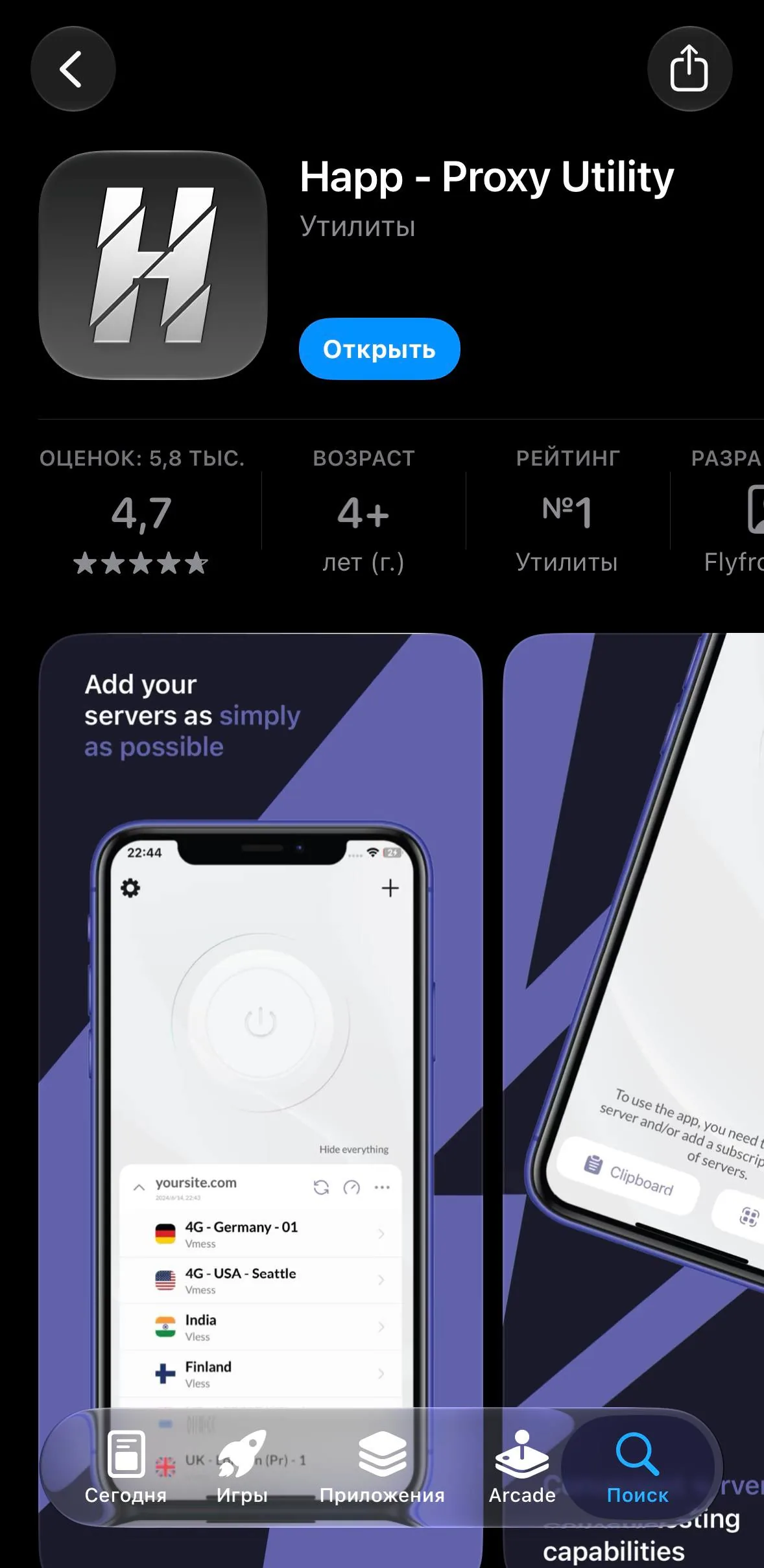
Install Happ from the App Store
If you have not installed the client yet, open the official App Store page:
Where to get your connection key
Copy your personal connection URL (subscription link) from your dashboard or the Telegram bot:
In the Telegram Bot
Open the Aether VPN bot, tap “Manage Subscription”, and copy the full subscription URL under “Connection Key”.
In your Account Dashboard
Sign in to your Aether Account, go to “Profile → Instructions”, and click the copy button beside your key.
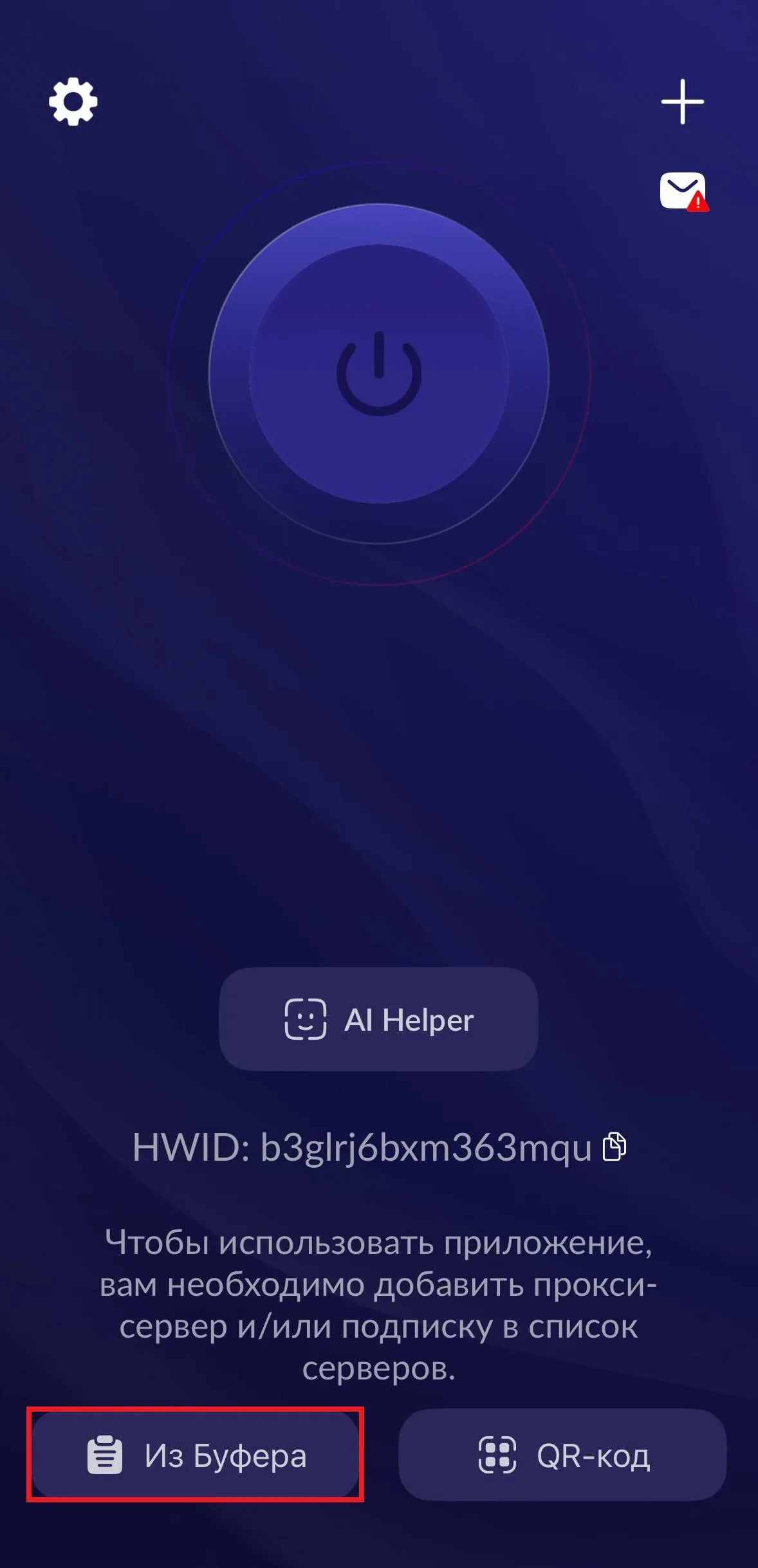
Add subscription to Happ
- 1.Open Happ and tap the button in the upper right (“From clipboard” or «Из буфера»).
- 2.When iOS prompts for permission to paste, tap “Allow”. Wait a moment for the server list to populate.
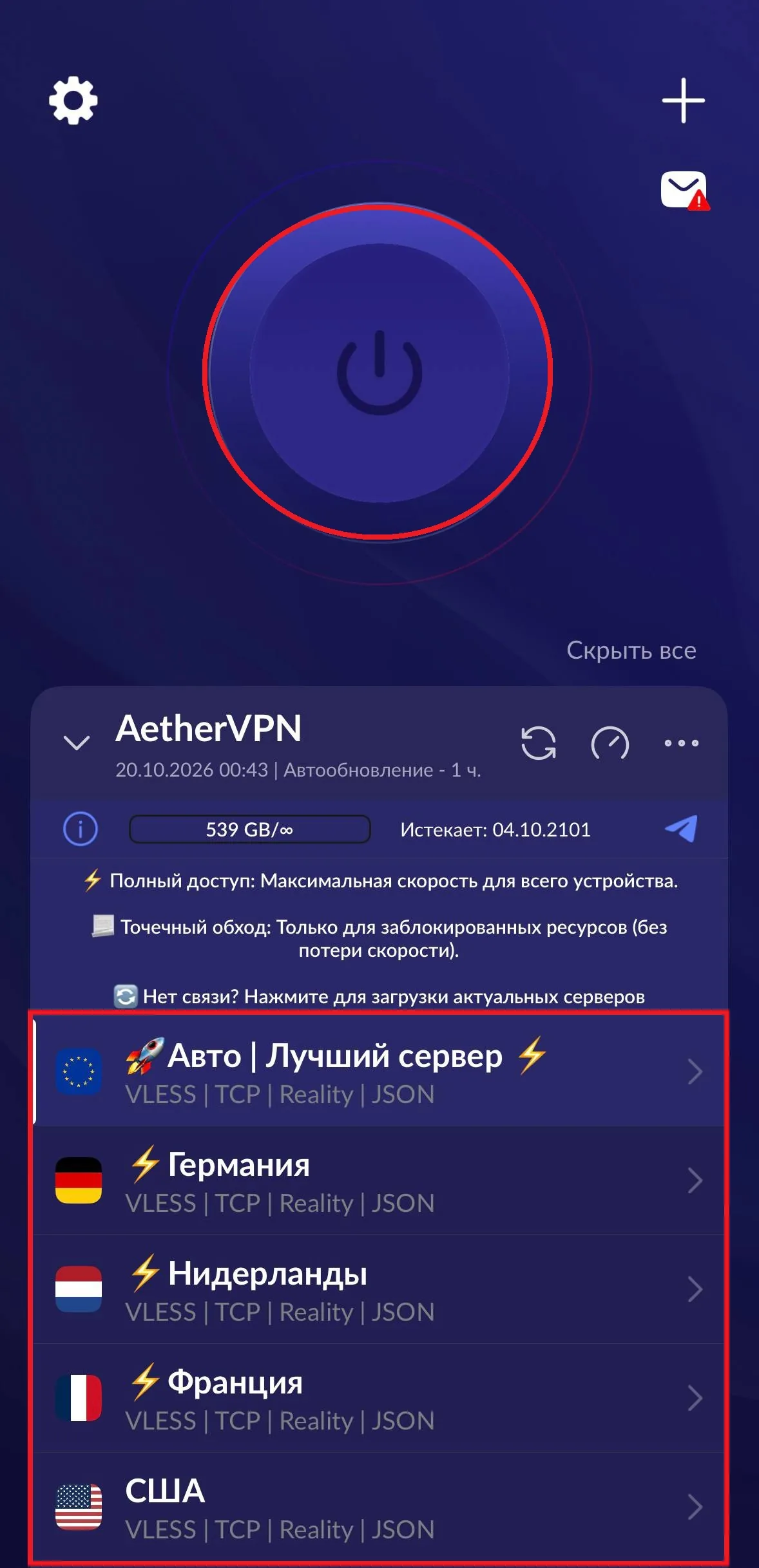
Connect to VPN
- 1.Select your preferred server location from the list.
- 2.Press the large round power button at the top of the screen.
- 3.When iOS asks for permission to add a VPN configuration, tap “Allow” and enter your device passcode.
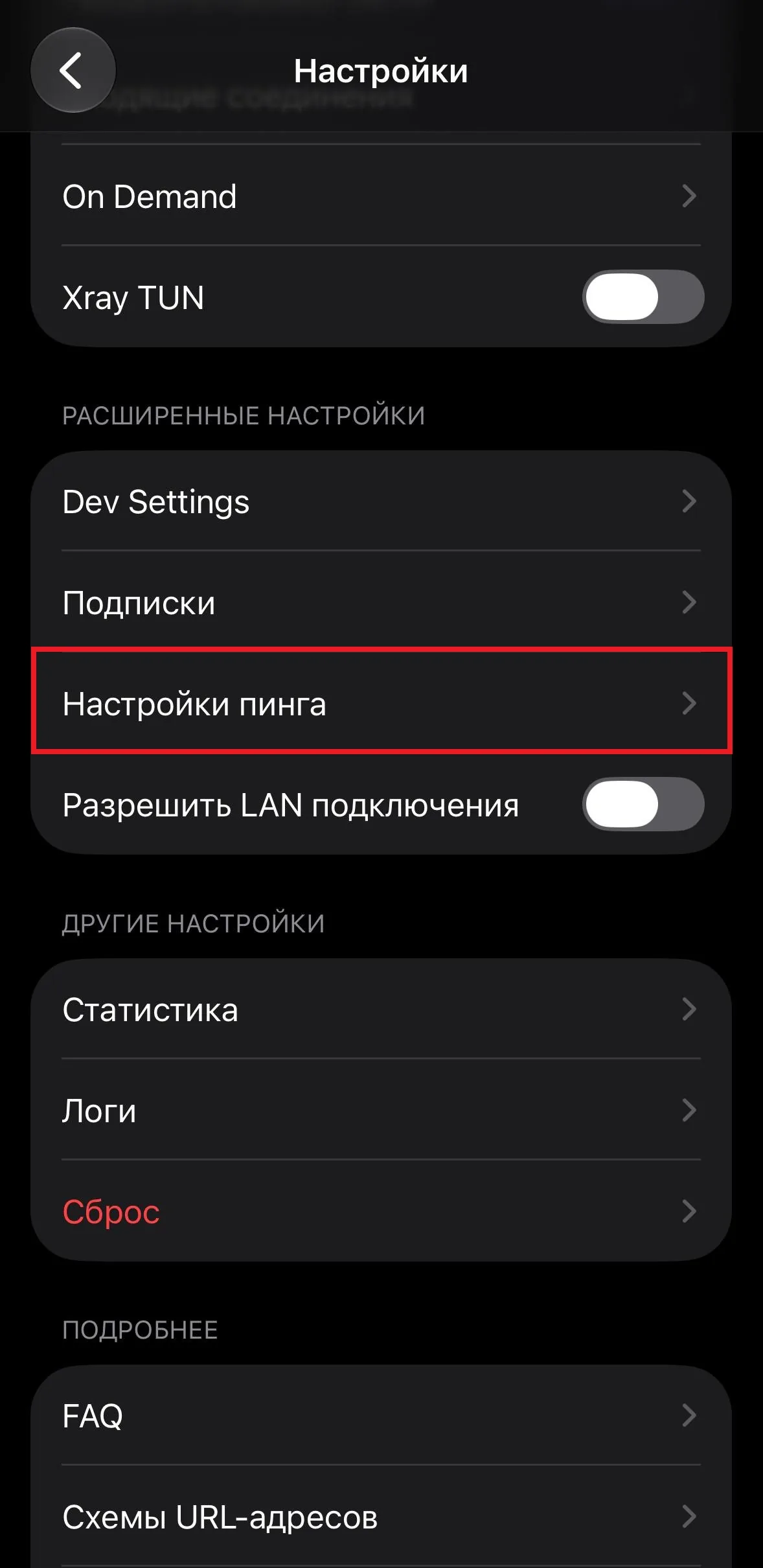
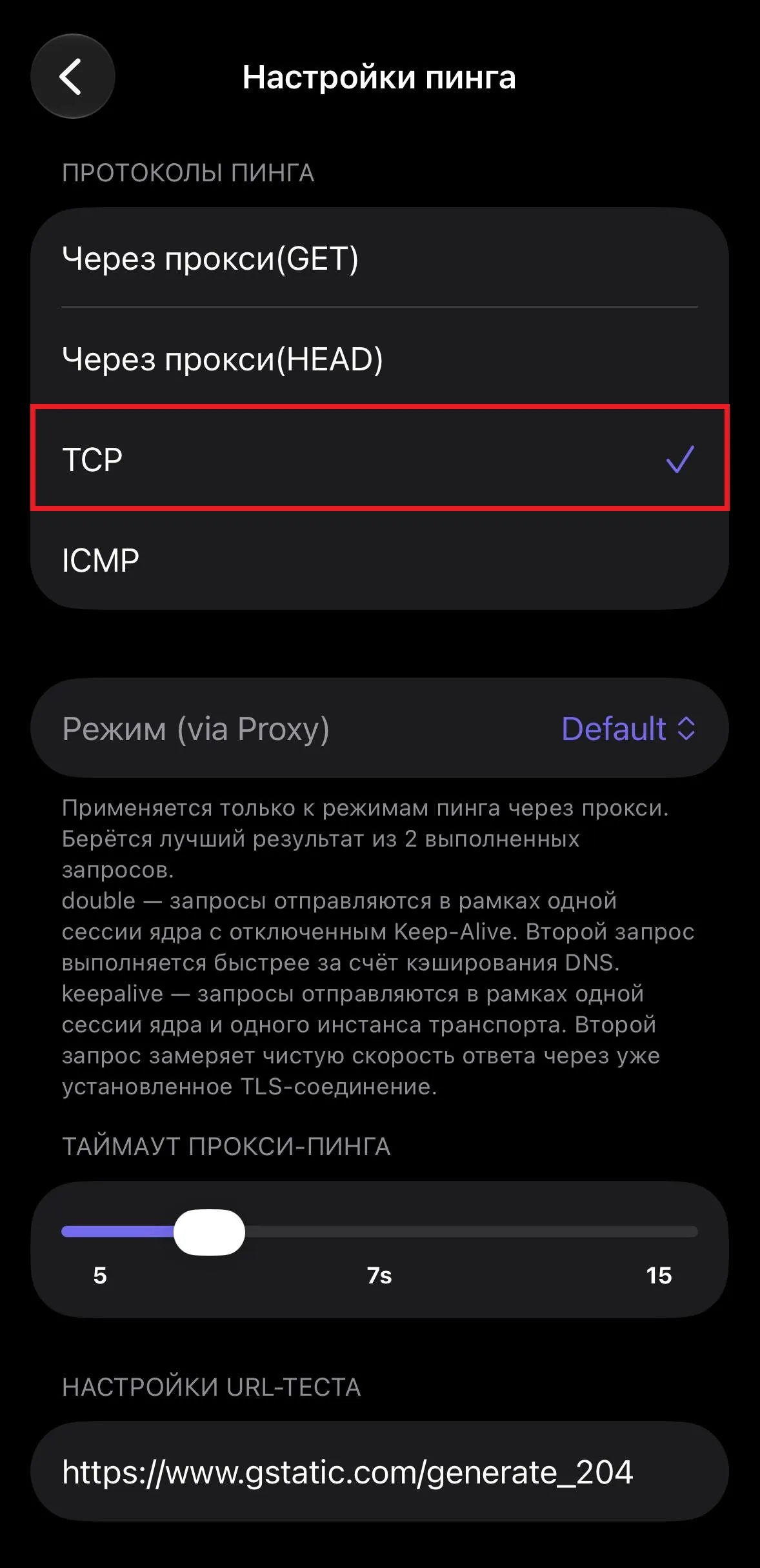
Configure Ping protocol (TCP)
For the fastest and most accurate latency reporting, select TCP:
- 1.Tap the settings gear icon in Happ and open “Ping”.
- 2.Under “Ping protocols”, choose TCP.
Need help connecting?
Tell us your device model and the exact step you are on. Our support team is ready to help you get connected in minutes.