Aether VPN on Linux
Connect to Aether VPN on Linux using the modern Happ desktop client. This guide covers installation for x64 packages (deb, rpm, pkg.tar.zst), importing your subscription, and recommended settings.
Note: Screenshots show the interface. English labels below are descriptive translations; wording may slightly vary across app versions.
Before you start
- •You need an active Aether VPN subscription. Copy your connection key from your Account Dashboard or the Telegram Bot.
- •Keep your connection key private and hide it in screenshots.
- •Turn off other VPN clients and system proxies before connecting for the first time.
Download and Install Happ for Linux (x64)
Download and install the package matching your Linux distribution:
wget https://github.com/Happ-proxy/happ-desktop/releases/latest/download/Happ.linux.x64.debsudo apt install ./Happ.linux.x64.debcurl -LO https://github.com/Happ-proxy/happ-desktop/releases/latest/download/Happ.linux.x64.rpmsudo dnf install ./Happ.linux.x64.rpm # for Fedorasudo zypper install ./Happ.linux.x64.rpm # for openSUSEcurl -LO https://github.com/Happ-proxy/happ-desktop/releases/latest/download/Happ.linux.x64.pkg.tar.zstsudo pacman -U ./Happ.linux.x64.pkg.tar.zst./ prefix before the package filename — it explicitly tells your package manager to install the local file in the current directory.Where to get your connection key
Copy your personal connection URL (subscription link) from your dashboard or Telegram bot:
In the Telegram Bot
Open the Aether VPN bot, tap “Manage Subscription”, and copy the full link under “Connection key”.
In your Account Dashboard
Sign in to your Aether Account, navigate to “Profile → Instructions”, and click the copy button.
Add subscription and connect
1. Copy your personal subscription URL from your bot or dashboard.
2. Launch Happ. If your system requires root privileges for TUN mode, launch it with:
sudo happ3. On the initial Insert screen, paste your link into the subscription field manually or click the clipboard icon, then click Get started.
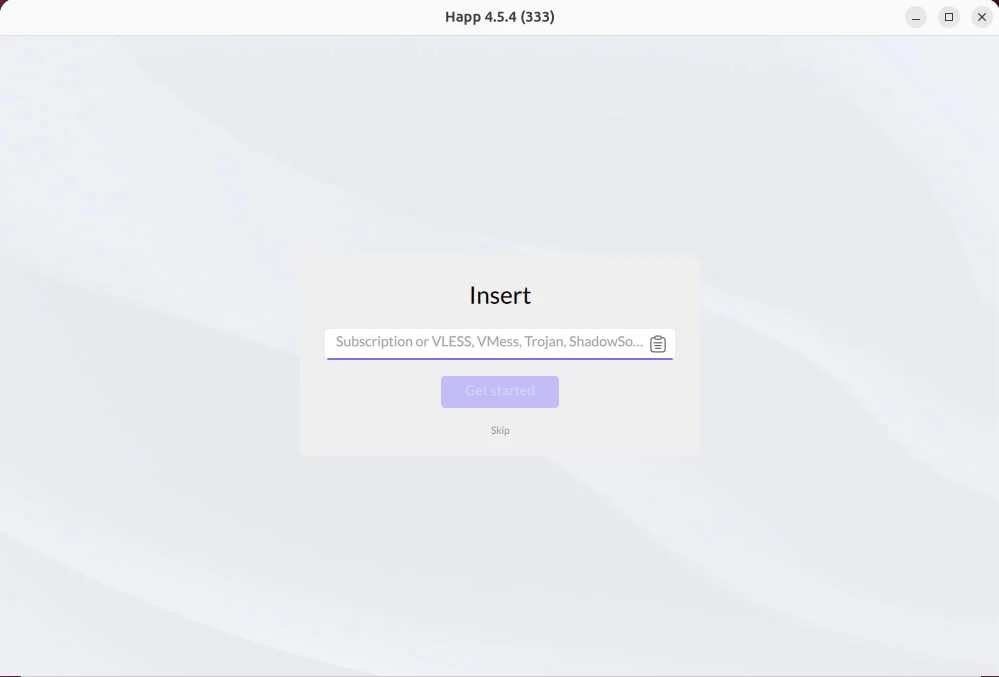
Happ initial subscription import screen on Linux.
4. Select a location from the server list and press the round connect button. Make sure TUN mode is active.
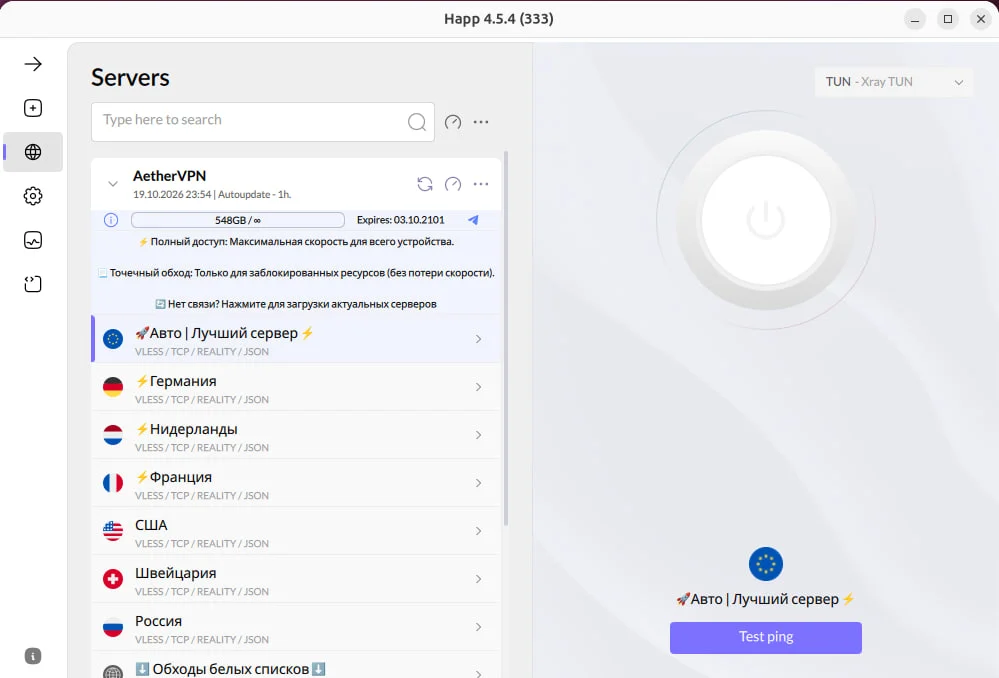
Server list and connection status in Happ.
Configure automatic updates and TCP ping (recommended)
For optimal performance, configure automatic updates and TCP ping checking:
- •Click the gear icon (Settings), scroll to Advanced settings, and open Subscriptions. Enable Auto update, set the interval to 1 hour, and enable Update on open.
- •Open Settings → Ping and select TCP as the ping type. Choosing TCP tests server responsiveness with higher accuracy.
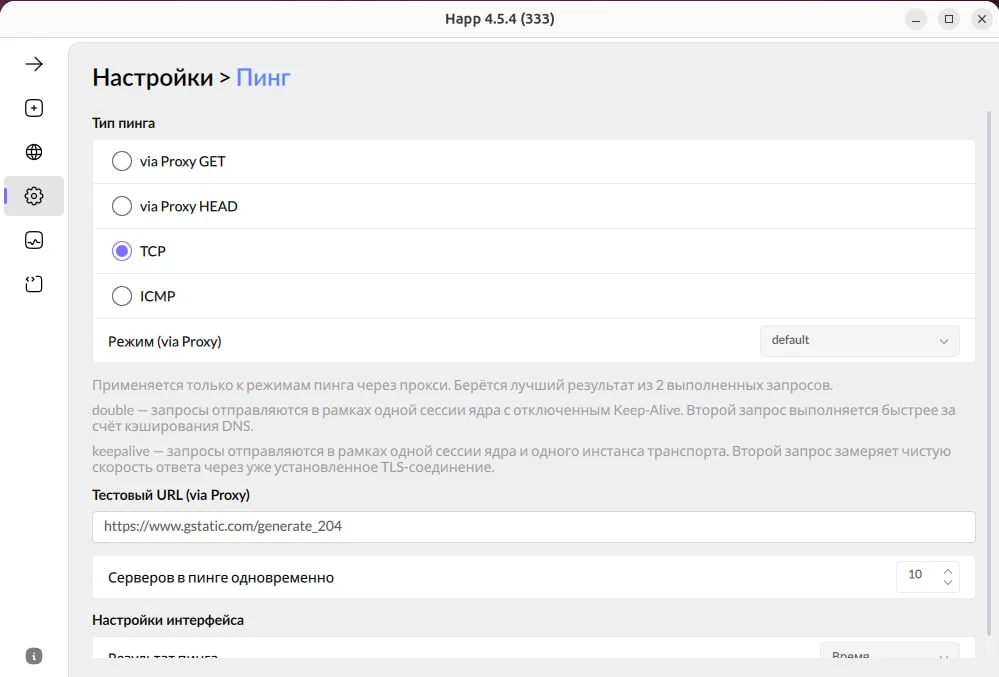
Selecting TCP ping type in Happ settings.
Check glibc compatibility
Official Happ system requirements specify glibc 2.31 or newer for Linux. To check your installed glibc version, run:
ldd --versionNeed help connecting?
Tell us your Linux distribution and where you got stuck. Our support team is ready to help you get connected in minutes.