Aether VPN on macOS
Connect to Aether VPN on your Mac using the modern, lightweight Happ client. Follow this step-by-step setup guide with screenshots.
Note: Screenshots show the application interface. English labels below are descriptive translations; wording may slightly vary across app versions.
Before you start
- •You need an active Aether VPN subscription. Copy your connection key from your Account Dashboard or the Telegram Bot.
- •Keep your connection key private and do not share it on screenshots.
- •Turn off other VPN clients and system proxies before connecting for the first time.
Install Happ for macOS
Download the official Happ DMG installer for macOS (Universal build supporting both Apple Silicon M1/M2/M3/M4 and Intel processors) and install it on your Mac:
Where to get your connection key
Copy your personal connection URL (subscription link) from your dashboard or the Telegram bot:
In the Telegram Bot
Open the Aether VPN bot, navigate to “Manage Subscription”, and copy the full link under “Connection key”.
In your Account Dashboard
Sign in to your Aether Account, navigate to “Profile → Instructions”, and click the copy button.
Add subscription to Happ and connect
- 1.Open Happ and click the “+” icon in the upper-left corner.
- 2.From the dropdown menu, select “Paste from clipboard” — the application will automatically import your servers.
- 3.Select a server location from the list and press the connect button.
- 4.On your first connection, macOS will display: “Happ would like to add VPN configurations”. Click “Allow” and enter your Mac password or use Touch ID.
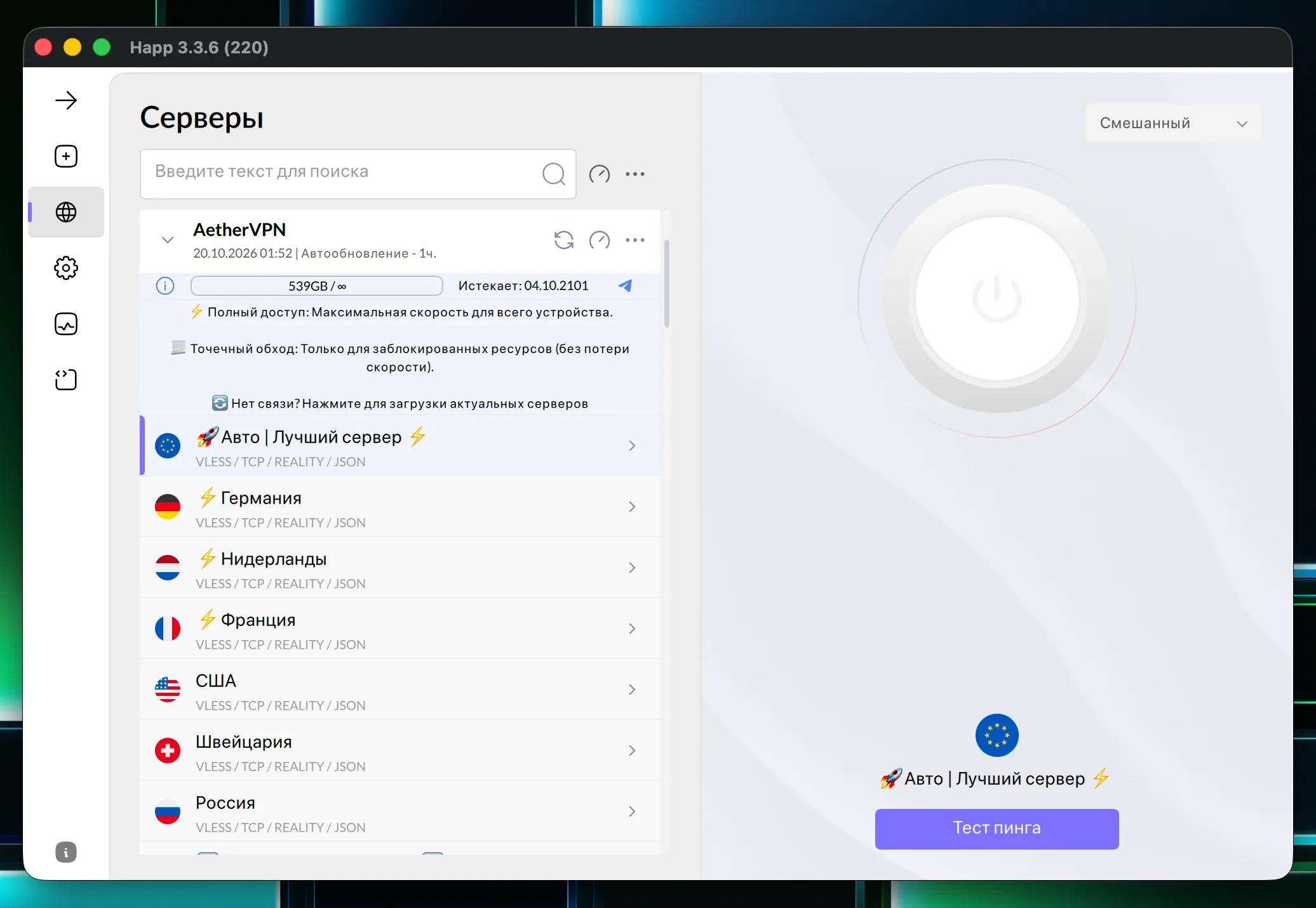
Happ for macOS interface with the imported subscription and server list.
Need help connecting?
Tell us your macOS version and the step you are on. Our support team is ready to help you get connected in minutes.